 IT Security Team Tech Site

 Setting up RDP
To setup RDP access we will need access to the server physically.
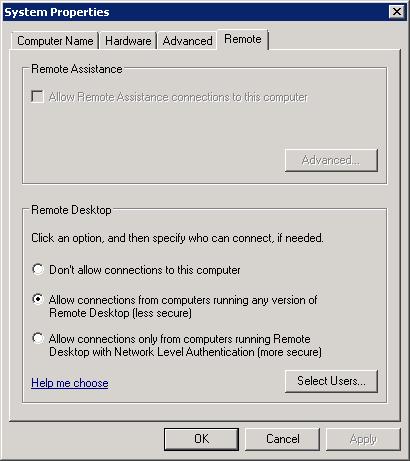
Firstly we need to turn on RDP, This can be done by right clicking "My computer" and left clicking properties. Click on remote settings on the left hand side and you should see a page like the one shown on the left. click the radio button "Allow connections from computers running any version of Remote Desktop (less secure)". The computer will now allow remote desktop to be used. The less secure statment refers to the new security improvemonts in RDP by microsoft. However you will need to be in an active directory to take advantage of this.
Next we will need to set up accounts on the computer to allow users to log in. Click "Select Users" this will allow you to choose users from the local list of users on the system.
Lastly we will need to allow access via the network to the RDP port on the computer, This is explained in the IPsec section of this help site. The port we will need open is 3389. This will also need to be opened in the university firewall should access from outside the university be required.