 IT Security Team Tech Site

 Scheduling windows update
For any Windows system to remain secure, Windows updates MUST be scheduled to automatically install when released by Microsoft. To configure this server to receive regular Windows updates …
- Click start / Run / Type "MMC" and click OK
- From the resulting Microsoft Management Console, Click file and "add snap-in".
- Add Group policy object editor. and click OK
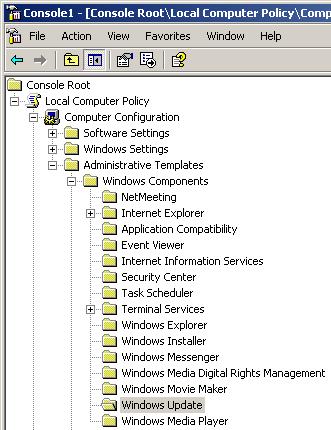
- Expand Computer configuration / Administrative Templates / Windows components / Windows update
- Double click "Configure automatic updates" and set the automatic update option to ‘enabled’
- Select ‘Option 3 - Auto download and notify to install’ from the configure automatic updating section – this will download necessary patches, notify you new patches are available, but will NOT
- automatically install the updates. Updates should always be installed manually, just in case the new updates cause problems with the server.
- Click OK to close the Automatic updates dialog box
- Double click "Specify intranet Microsoft update server location"
- Set the intranet option to ‘Enable’, then enter the intranet location as "Http://msupdate.cf.ac.uk" as both the detecting and statistic server.
- Click OK to close the update location dialog box
- Double click "No auto-restart for scheduled Automatic updates installations" enable this option – this will ensure your server is NOT automatically re-started following Windows updates
- installations. Servers should always be rebooted under the owners discretion, not automatically.
- Double click "Automatic update detection frequency" enable this option
- Set the update interval to 22 hours
- Click OK to close the detection frequency dialog box.